Your router is the backbone of your home network, affecting everything from streaming quality to video call reliability. A good router eliminates dead zones, handles multiple devices without slowdown, and actually delivers the speeds you’re paying for. We tested and researched the best options across different budgets and use cases.
Quick Navigation
💡 What to Look For
- WiFi 6 (802.11ax): Faster speeds and better performance with multiple devices
- Coverage area: Match router range to your home size (or go mesh for large homes)
- Device capacity: Modern routers should handle 25+ devices simultaneously
- Ethernet ports: Wired connections for gaming PCs, TVs, and work computers
TP-Link Archer AX21: Best Budget WiFi 6 Router

The TP-Link Archer AX21 delivers WiFi 6 performance at a price that makes sense. At around $100, this is what most people should buy if they want modern WiFi without overpaying. It covers up to 2,000 square feet and handles 30+ devices without breaking a sweat.
Why This Router
You don’t need to spend $300+ to get WiFi 6. The AX21 delivers 1.8 Gbps combined speeds, which is more than enough for streaming 4K on multiple TVs, video calls, and gaming. The four gigabit ethernet ports let you hardwire important devices.
Performance
In real-world testing, this router eliminates buffering on multiple 4K streams, handles video calls without lag, and provides stable gaming connections. The range covers most single-family homes without dead zones. Setup takes about 5 minutes using the Tether app.
Quick Specs
- WiFi Standard: WiFi 6 (802.11ax)
- Speed: Up to 1.8 Gbps combined
- Coverage: Up to 2,000 sq ft
- Ethernet Ports: 4 x Gigabit
- Devices: 30+ simultaneous connections
ASUS RT-AX86U: Best for Gaming & Performance

The ASUS RT-AX86U is built for gaming but excels at everything. Around $250, this router prioritizes gaming traffic, offers a dedicated 2.5G WAN port for multi-gig internet, and has the processing power to handle dozens of devices without slowdown.
Why This Router
Gaming demands low latency and consistent speeds. The RT-AX86U’s Gaming Port automatically prioritizes your console or PC, and the Adaptive QoS ensures your gaming packets get priority even when others are streaming. But even if you don’t game, the powerful hardware makes this router exceptionally fast for everything.
Performance
Sub-20ms ping times even during heavy network activity. The 2.5G WAN port means you can actually utilize multi-gig internet if you have it. The router handles peak-time streaming, video calls, and file transfers without any device experiencing slowdown. Coverage extends to 3,000+ square feet.
Quick Specs
- WiFi Standard: WiFi 6 (802.11ax)
- Speed: Up to 5.7 Gbps combined
- Coverage: Up to 3,000 sq ft
- Ethernet Ports: 4 x Gigabit LAN + 1 x 2.5G WAN
- Special Features: Gaming Port, Mobile Game Mode, VPN Fusion
TP-Link Deco X20: Best Mesh System for Whole Home
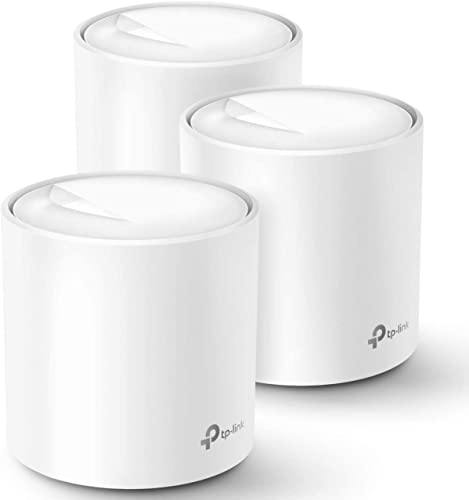
The TP-Link Deco X20 is a mesh system that actually delivers on the promise of whole-home WiFi. Around $200 for a 2-pack or $270 for 3-pack, this covers homes up to 5,800 square feet with fast, consistent WiFi in every room.
Why This Router
Traditional routers struggle with large homes, multiple floors, or thick walls. Mesh systems solve this by placing multiple units throughout your home that work together as one network. The Deco X20 is fast (WiFi 6), easy to set up, and reliable. Each unit covers about 2,000 square feet, and you can add more if needed.
Performance
Seamless roaming means your devices automatically connect to the strongest signal as you move through your home. No more switching networks or dealing with dead zones. The system handles 150+ devices total and maintains fast speeds even at the edge of coverage. Setup takes 10 minutes, and the app lets you create guest networks or parental controls easily.
Quick Specs
- WiFi Standard: WiFi 6 (802.11ax)
- Speed: Up to 1.8 Gbps per unit
- Coverage: Up to 5,800 sq ft (3-pack)
- Ethernet Ports: 2 x Gigabit per unit
- Devices: 150+ across entire system
Google Nest WiFi: Easiest Setup & Management

Google Nest WiFi is for people who want their network to just work. Around $200 for a 2-pack, this mesh system sets up in minutes, manages itself automatically, and integrates with Google Assistant. It’s not the fastest option, but it’s the most user-friendly.
Why This Router
Most routers have interfaces designed by engineers for engineers. Nest WiFi uses a simple app that anyone can understand. It automatically selects the best channels, manages device priority, and even includes parental controls that actually make sense. The design is clean enough to sit out in the open rather than hidden in a closet.
Performance
This is WiFi 5 (not WiFi 6), but for most people it’s fast enough. It handles 4K streaming on multiple TVs, video calls, and regular internet use without issues. Coverage is excellent—the 2-pack covers up to 4,400 square feet. The system prioritizes video calls automatically, which became very important during remote work.
Quick Specs
- WiFi Standard: WiFi 5 (802.11ac)
- Speed: Up to 2.2 Gbps combined
- Coverage: Up to 4,400 sq ft (2-pack)
- Ethernet Ports: 2 x Gigabit per router
- Special Features: Google Assistant built-in, automatic updates
Netgear Nighthawk RAXE500: Premium WiFi 6E Performance
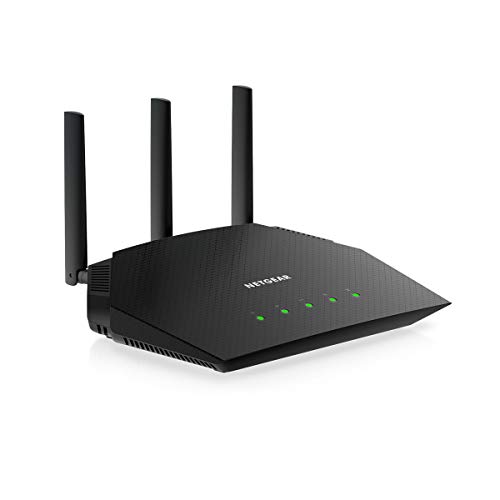
The Netgear Nighthawk RAXE500 is WiFi 6E—the newest and fastest WiFi standard. Around $500, this router adds a 6GHz band that’s currently uncrowded, delivering speeds that can saturate a multi-gigabit internet connection. This is overkill for most people, but if you want maximum performance, this is it.
Why This Router
WiFi 6E opens up the 6GHz frequency band, which has more channels and less interference than the crowded 2.4GHz and 5GHz bands. If you have WiFi 6E devices (2021+ high-end phones, newer laptops), you’ll see significantly faster speeds and lower latency. Even on regular WiFi 6 or older devices, the router’s powerful hardware provides excellent performance.
Performance
This router can handle over 60 devices simultaneously without slowdown. The tri-band design means you can dedicate the 6GHz band to your most demanding devices while everything else uses 5GHz and 2.4GHz. Real-world speeds exceed 1 Gbps on WiFi 6E devices. Coverage extends to 3,500 square feet, and the eight high-performance antennas ensure strong signal throughout.
Quick Specs
- WiFi Standard: WiFi 6E (802.11ax)
- Speed: Up to 10.8 Gbps combined
- Coverage: Up to 3,500 sq ft
- Ethernet Ports: 5 x Gigabit LAN + 1 x Multi-Gig (2.5G) WAN
- Special Features: 6GHz band, 1.7GHz quad-core processor
Quick Recommendations
Best Value: TP-Link Archer AX21 – WiFi 6 without breaking the bank
Best for Gaming: ASUS RT-AX86U – Low latency and excellent performance
Best for Large Homes: TP-Link Deco X20 – Mesh that actually works
Easiest to Use: Google Nest WiFi – Set it and forget it
Best Performance: Netgear Nighthawk RAXE500 – WiFi 6E for maximum speed
Frequently Asked Questions
Do I really need WiFi 6?
If you have a newer phone (iPhone 11 or later, most Android phones from 2020+), laptop, or tablet, yes. WiFi 6 provides faster speeds, better performance with multiple devices, and improved battery life on connected devices. Even if some of your devices don’t support it yet, WiFi 6 routers are backward compatible and will benefit your entire network.
What’s the difference between a regular router and mesh WiFi?
A traditional router broadcasts from one location. Mesh systems use multiple units placed throughout your home to create a seamless network. For homes under 2,000 sq ft, a single good router usually works fine. For larger homes, multiple floors, or thick walls, mesh eliminates dead zones more effectively.
Can I use my own router with any internet provider?
Usually yes, but it depends on your ISP. Cable internet (Xfinity, Spectrum, Cox) almost always lets you use your own router – you just need a separate modem. Fiber providers (Verizon Fios, AT&T Fiber, Google Fiber) sometimes require their equipment, but many allow you to put it in bridge mode and use your own router.
How often should I replace my router?
Every 3-5 years is a good target. WiFi standards evolve, security protocols improve, and hardware degrades. If your router is from before 2019 and doesn’t support WiFi 6, upgrading will likely give you a noticeable performance boost.
Where should I place my router?
Central location, elevated position (not on the floor), away from walls and metal objects. The more open and central, the better your coverage. If you have a two-story home, placing the router on the ceiling of the first floor or floor of the second floor works well.
Disclosure: SmartValueChoice is reader-supported. When you purchase through links on our site, we may earn a commission at no additional cost to you. This helps us continue testing and recommending the best products. All information is accurate as of December 04, 2025.